Back up data and change phones
Automatic backups and full exports are different: full exports include Homework photos and files.
1Check automatic backup
On iPhone, enable iCloud for the app. Android, coming soon, follows Google backup settings and may not include the latest changes. Automatic copies exclude attachments.
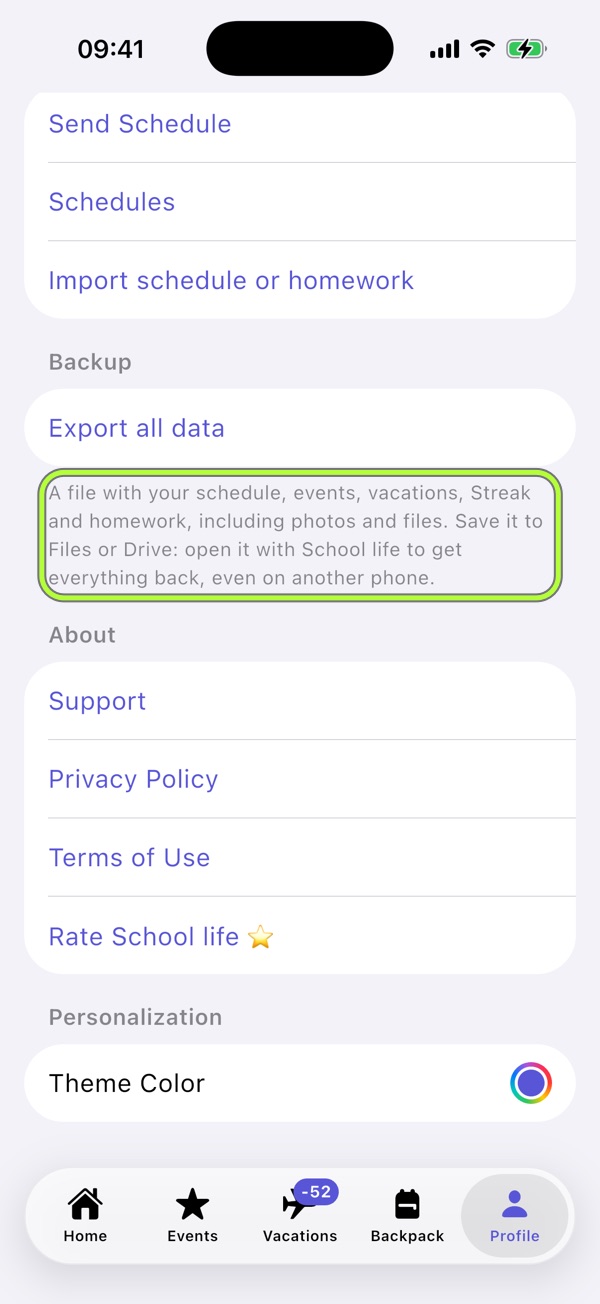
2Export all data
In Profile → Backup, choose Export all data. Keep the .schoollife file in Files, Drive or another location: it includes photos and attachments.
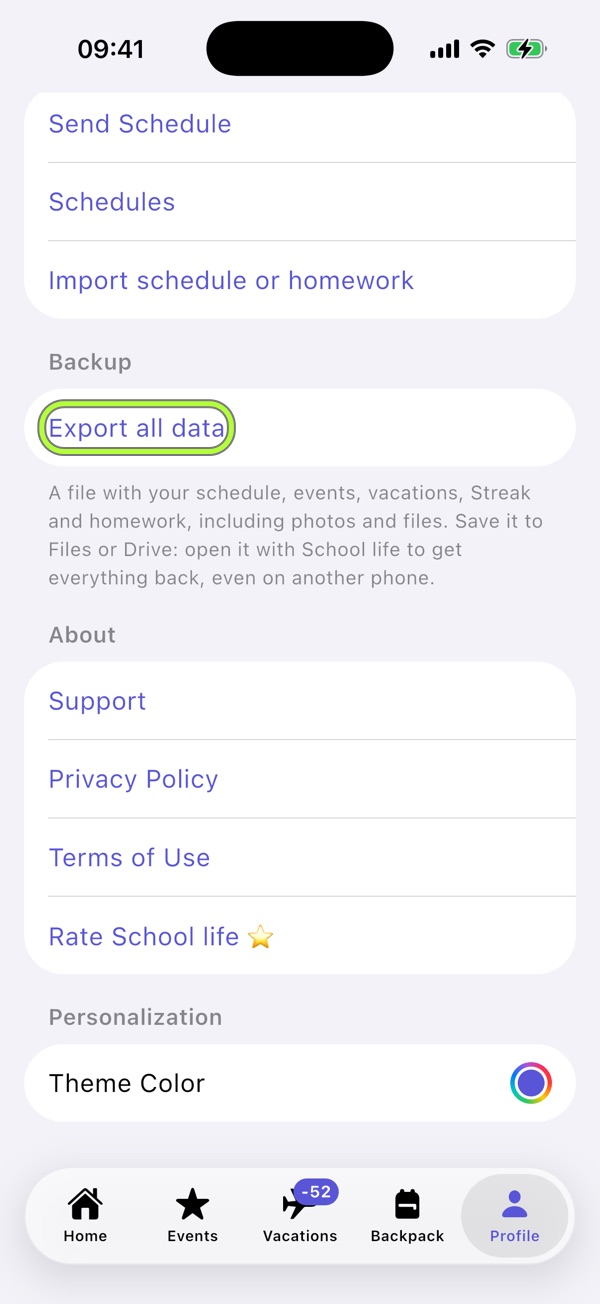
3Restore on the new phone
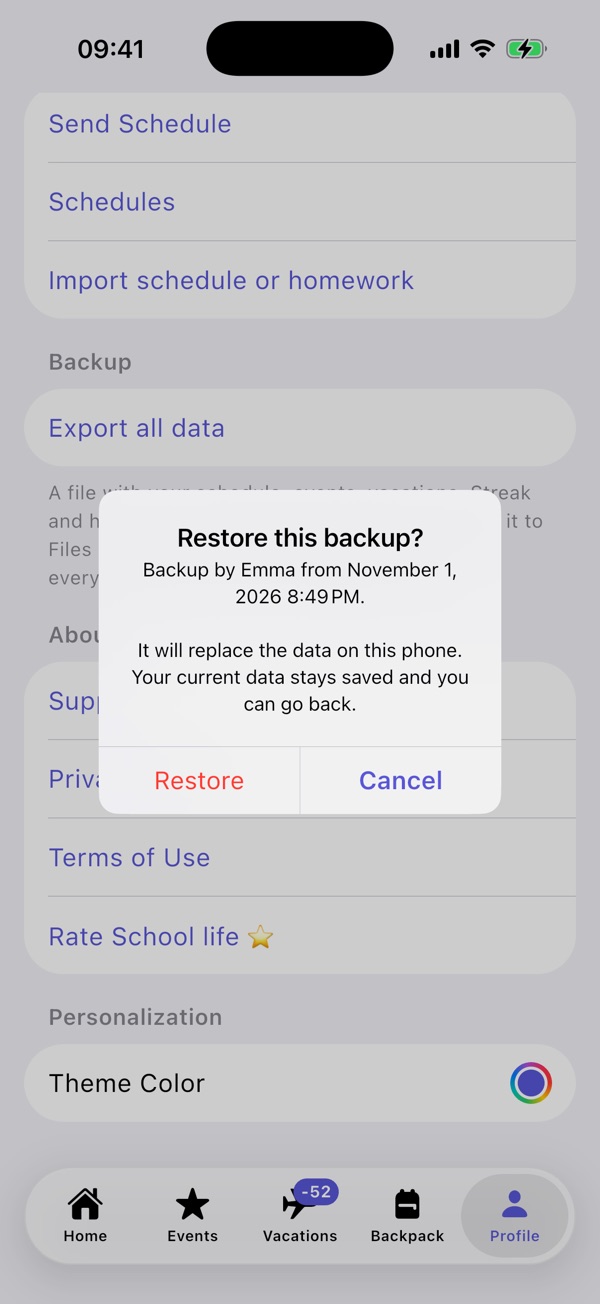
Using the same account, an available automatic backup restores into an empty app. For a full copy, open the file and confirm. Existing data is first saved in a safety copy.
4Restore Pro
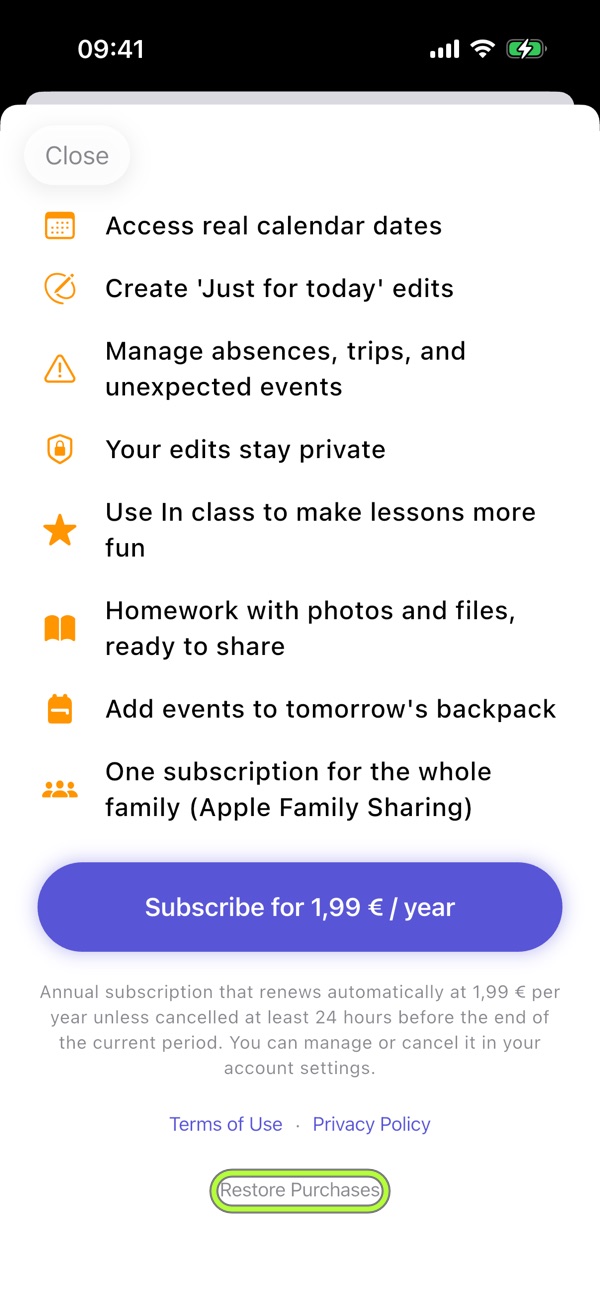
Use the same store account and Restore purchases. A data backup does not transfer the subscription. iCloud does not synchronise phone and tablet edits.

School life brings it together.Your schedule, evening Backpack, tests and Vacations in one free app. No account, no ads.
Download on the App Store